Host metrics panels
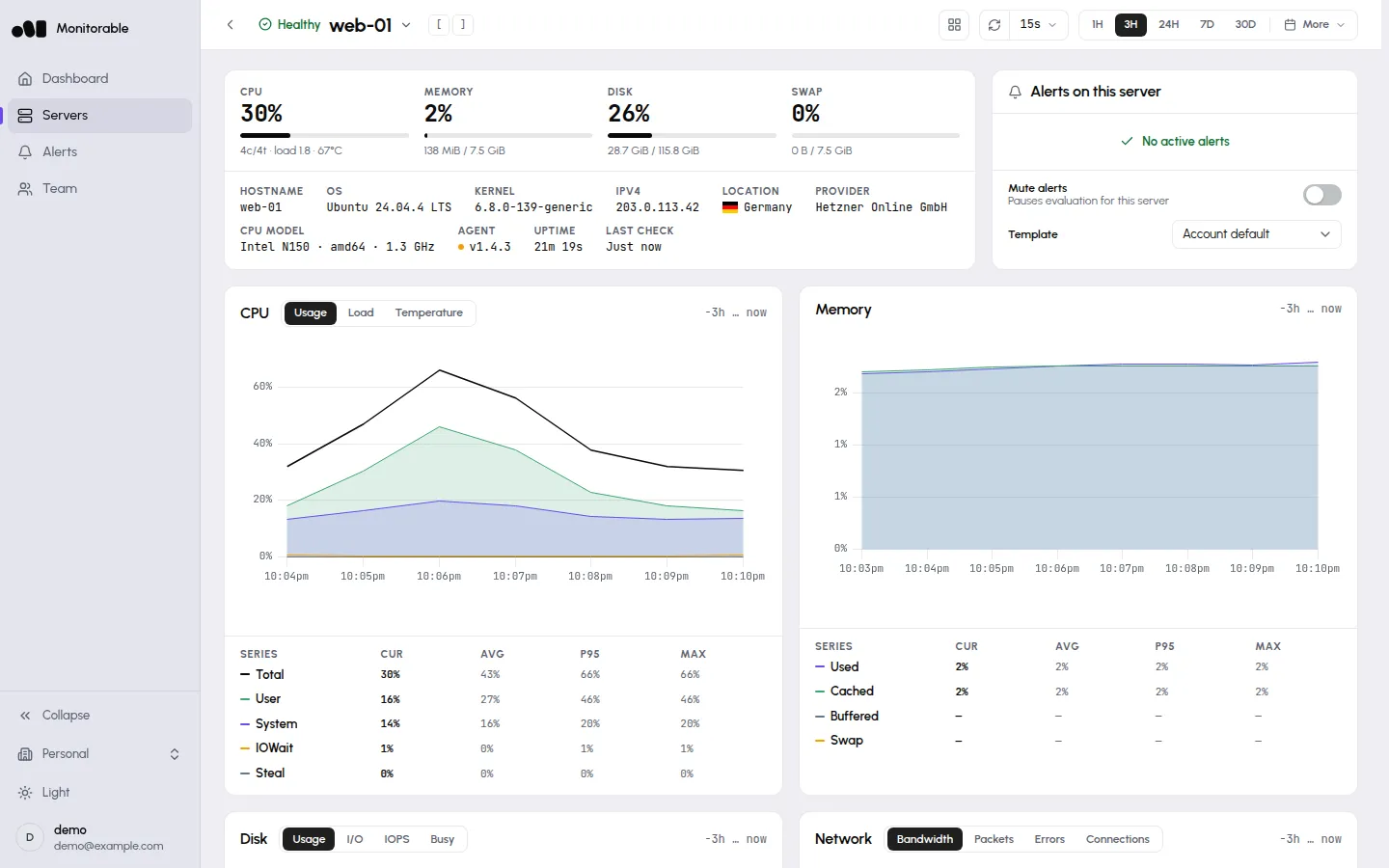
Open any server from the Servers page to get its metrics view: a status bar with live gauges on top, then a grid of chart panels. Data arrives from the agent once a minute, so every chart has per-minute detail for recent ranges.
The status bar and summary
Section titled “The status bar and summary”The top of the page answers “is this server OK right now”:
- Status — the icon and word next to the server name in the page header, the same triage word the Servers page uses: Healthy when the agent is reporting and no alert is firing; Needs attention when at least one incident is firing and not yet acknowledged; Acknowledged when every open incident has been acknowledged; Dormant after 7 days without data. A server that has stopped reporting and has no un-acknowledged incident shows its liveness instead: Stale after 5 minutes without data, Offline after 15. Whenever the agent is not reporting, a banner above the gauges repeats the liveness word with the time of the last report, and the gauges show dashes — so an offline server whose Agent offline rule has fired reads Needs attention in the header and Offline · last seen … in the banner.
- Four gauges: CPU (with core count, load average, and temperature underneath), Memory, Disk (the root filesystem), and Swap.
- Server details: hostname, OS, kernel, IPv4 and IPv6 (each shown when the server has it), location, provider, CPU model (with architecture and clock), Agent version (a green dot means it is the current release), Uptime (hovering shows the exact boot time; a Reboot required icon appears next to it when the server has a pending reboot — the flag Ubuntu and Debian set after kernel or libc updates), and Last check — when the most recent batch arrived. Location and provider are derived from the public IP — the agent doesn’t collect them (what it does send).
The server list shows the IPv4 address when a server has both; location comes from the same address. The Servers page sorts the fleet by the same triage words and filters it with chips: All, Needs attention, Acknowledged, Unreachable (shown only while a server is Stale or Offline), Healthy, and Dormant. All lists the live servers; dormant ones stay hidden behind a Show n dormant servers link at the bottom of the table.
Reading a chart panel
Section titled “Reading a chart panel”All chart panels share the same controls:
- Time range — the 1H, 3H, 24H, 7D, and 30D buttons in the page header apply to every panel at once; More, at the end of the same bar, holds the remaining presets (6H, 12H, 3D, 15D, 3M, 6M, 1Y) and a custom range. Ranges up to 24 hours draw per-minute points, ranges up to 30 days hourly averages, and longer ones two-hour averages, so long-range charts look smoother than short-range ones. A custom range that starts more than 32 days ago draws two-hour averages whatever its length (Metrics history & resolution). Presets longer than your plan’s history are shown locked: muted, with the plan that unlocks them, both in the header bar and under Longer history in More. A saved or linked window that reaches further back than your plan allows is clipped, and a line above the charts names the date they now start from, which is the limit of your plan’s window, not a statement that nothing was recorded before it.
- Cur / Avg / P95 / Max — a stats table under each chart, one row per series, computed from exactly the points the chart is showing. Change the range and the stats follow.
- Refresh — the page header has a refresh-now button and an auto-refresh interval (Off to 3h, default 15s).
- Layout — the Single column toggle switches the panel grid to one full-width panel per row.
Three tabs:
- Usage — Total, User, System, IOWait, and Steal, as percentages of the server’s whole CPU capacity: 100% means every core is busy. (Container CPU works differently — see Docker container monitoring.)
- Load — 1m Load, 5m Load, 15m Load load averages.
- Temperature — one line per temperature sensor the agent can read; virtual machines usually expose none.
Memory
Section titled “Memory”One chart with Used, Cached, Buffered, and Swap lines. Cached and buffered memory is reclaimable, so a high cached value is normal on a busy server — watch Used and Swap for pressure.
Four tabs:
- Usage — how full the filesystem is over time.
- I/O — read and write throughput.
- IOPS — read and write operations per second.
- Busy — the share of time the device spent servicing requests.
I/O, IOPS, and Busy break down by physical device (nvme0n1, sda, …)
with the Per-device toggle, and the stats grid splits into Read
and Write columns — including a Total row for data moved over the
visible range.
Alert before a disk fills up
Section titled “Alert before a disk fills up”The Disk usage rule is on by default on every alert template, at 85%
over a 1-hour window: it fires once a filesystem’s hour-long average has
been above 85% on two consecutive checks, and every mount gets its own
incident, so a full /var and a full /home are two alerts. It resolves
after three consecutive checks below 90% of the threshold (76.5% at the
default), so a cleanup that only gets you to 80% keeps the incident open.
Lower the threshold, shorten the window, or route it to a channel of its
own in the template, following
Set up one alert.
Network
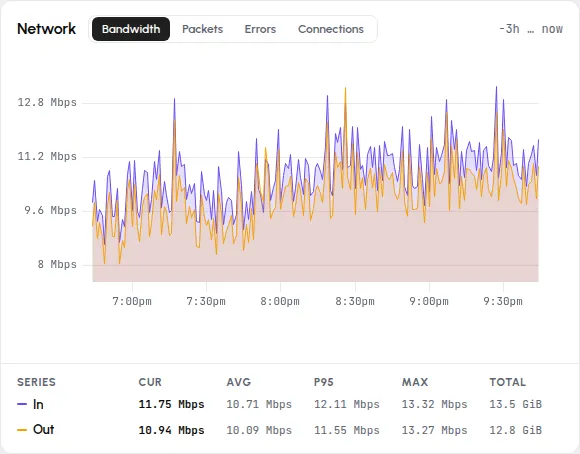
Section titled “Network”Four tabs — Bandwidth (In/Out), Packets, Errors, and
Connections (TCP connections by state, such as Established and
LISTEN). Bandwidth is shown in bits per second (kbps, Mbps),
the unit of your link speed and of the network alert thresholds. Its
stats table has an In and an Out row and adds a Total column:
data transferred over the visible range, in bytes (MiB, GiB).
When a panel is missing
Section titled “When a panel is missing”Panels reflect what the agent finds on the server: without reachable Docker the Containers panel stays at “No containers detected on this server” (details), and the Disk panel’s SMART tab renders only for physical drives on bare-metal servers. A panel is missing or empty walks the checks panel by panel. If every panel is empty and the banner above the gauges says Stale or Offline, that’s a delivery problem, not a display one — start with No data appearing.