Notification channels
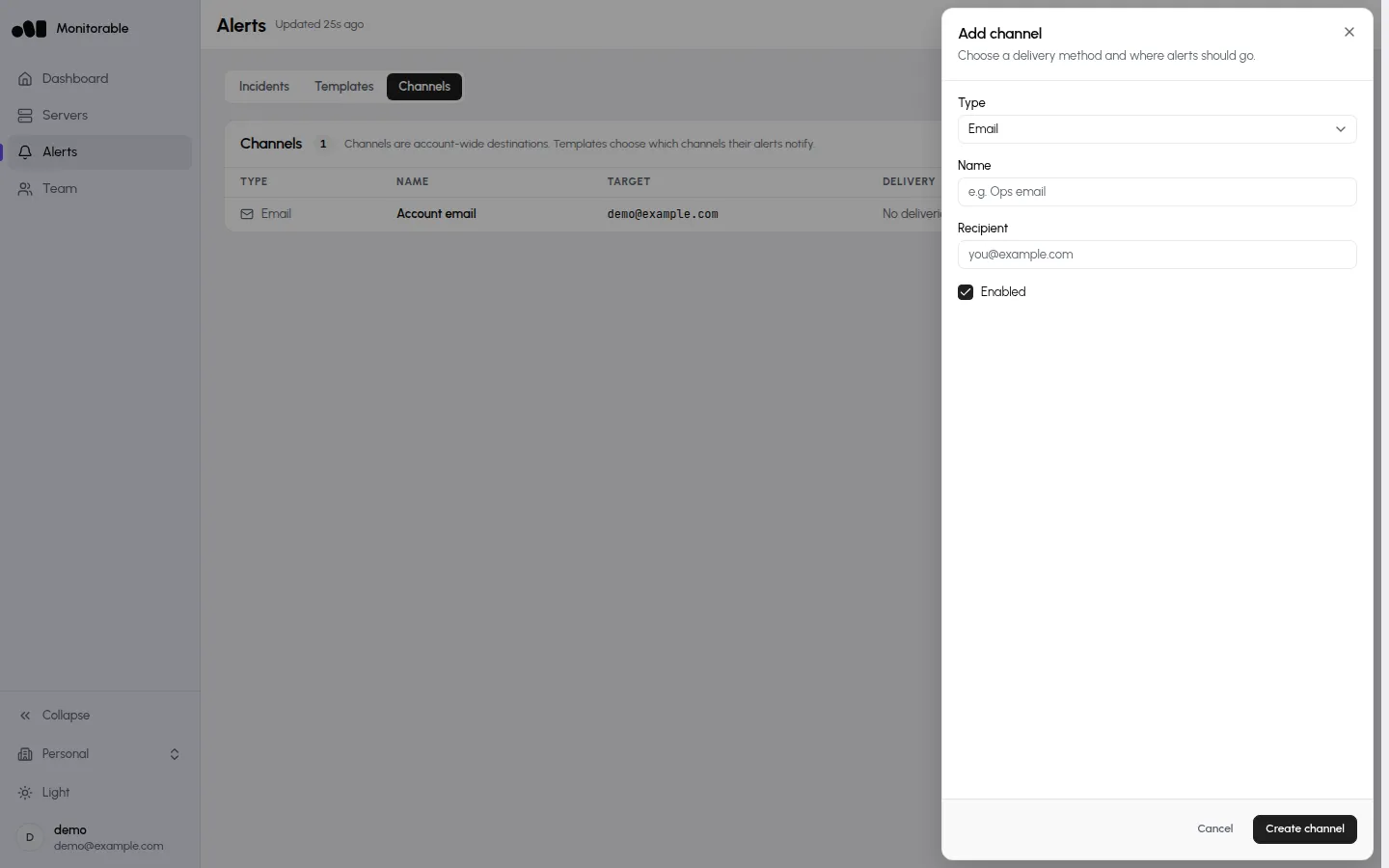
Channels live under Alerts → Channels. As the page itself says: “Channels are account-wide destinations. Templates choose which channels their alerts notify.” Create a channel once, then tick it in any template’s Notification channels list.
The Account email channel
Section titled “The Account email channel”Your first server brings a channel with it: Account email, pointing at your sign-in address, already attached to the Default template. It’s a normal channel — you can edit, disable, or delete it — but it isn’t recreated if you delete it, so make sure another channel is attached to your templates first.
Adding a channel
Section titled “Adding a channel”Click Add channel, pick a Type, and fill in the destination. Each channel has a Name, an Enabled switch, and one or two type-specific fields:
| Type | Fields |
|---|---|
| Recipient — an email address | |
| Telegram | Bot token and Chat ID |
| Discord | Webhook URL (https://discord.com/api/webhooks/…) |
| Slack | Webhook URL (https://hooks.slack.com/services/…) |
| PagerDuty | Routing key (Events API v2) |
| Webhook | URL — receives a JSON payload per notification |
| ntfy | Topic, plus an optional Server (defaults to ntfy.sh; https unless you write http://; a user:password@ and a path are kept) |
Webhook messages carry an [ALERT], [REMINDER], [ESCALATION],
[RESOLVED], or [TEST] title prefix with the server name, the incident
description, and a link back to the dashboard — enough to route on in most automation
tools.
Send a test
Section titled “Send a test”Every channel row has a test button (“Send test notification to …”). It delivers “This is a test notification from Monitorable.” from a server named “Sample Server”, so you can confirm the destination works before an incident does it for real. Test sends don’t count against the daily caps.
Alerts only go to public addresses, and redirects are not followed. If a webhook or ntfy destination resolves to a private or reserved address, or answers with a redirect, the test fails with a message that says so: use a public URL, or the final URL after the redirect.
Escalation
Section titled “Escalation”A template can escalate an alert nobody has acknowledged. In the template editor, the Escalation card sits between Notifications and Notification channels. Switch on Escalate if not acknowledged, pick a delay (15m, 30m, 1h, 2h, 4h, 12h, or 24h — 30m when you switch it on), and tick the channels the escalation should go to.
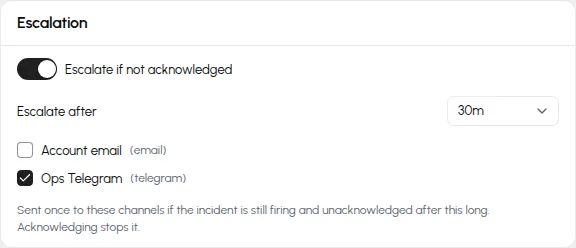
- There is one step. If the incident is still open and unacknowledged that long after the alert fired, it is sent once more to the escalation channels, titled “[ESCALATION]” followed by the server name in chat channels. Nothing further follows.
- Acknowledging the incident before the delay is up cancels the escalation. Acknowledging it afterwards doesn’t send anything.
- When the incident resolves, the resolve notice goes to the rule’s channels and to the escalation channels.
- The incident’s timeline shows an Escalation row per channel and an “Escalated” event. The Incidents list and the Alerts badge don’t change.
- Switching escalation off keeps the channels you picked, ready for next time. Saving with it on and no channel ticked is refused: “pick at least one escalation channel”.
- While a server is muted nothing is sent, escalations included. The mute doesn’t pause the escalation clock, so an alert held by a mute can escalate soon after it goes out once the mute ends.
Escalations count toward the daily caps below like any other send.
Daily caps
Section titled “Daily caps”To keep a runaway alert storm from flooding a destination, sends are capped per day (UTC): 50 for email and 200 for each other channel type, counted per type across your account — two email channels share one 50-send budget. The first send past the cap delivers a one-time notice — “Daily notification cap reached for this channel; further alerts today are suppressed.” — and further notifications that day are dropped. Resolve notifications, reminders, and escalations count like any other send; test sends don’t.