Which alert rules exist and what they fire on
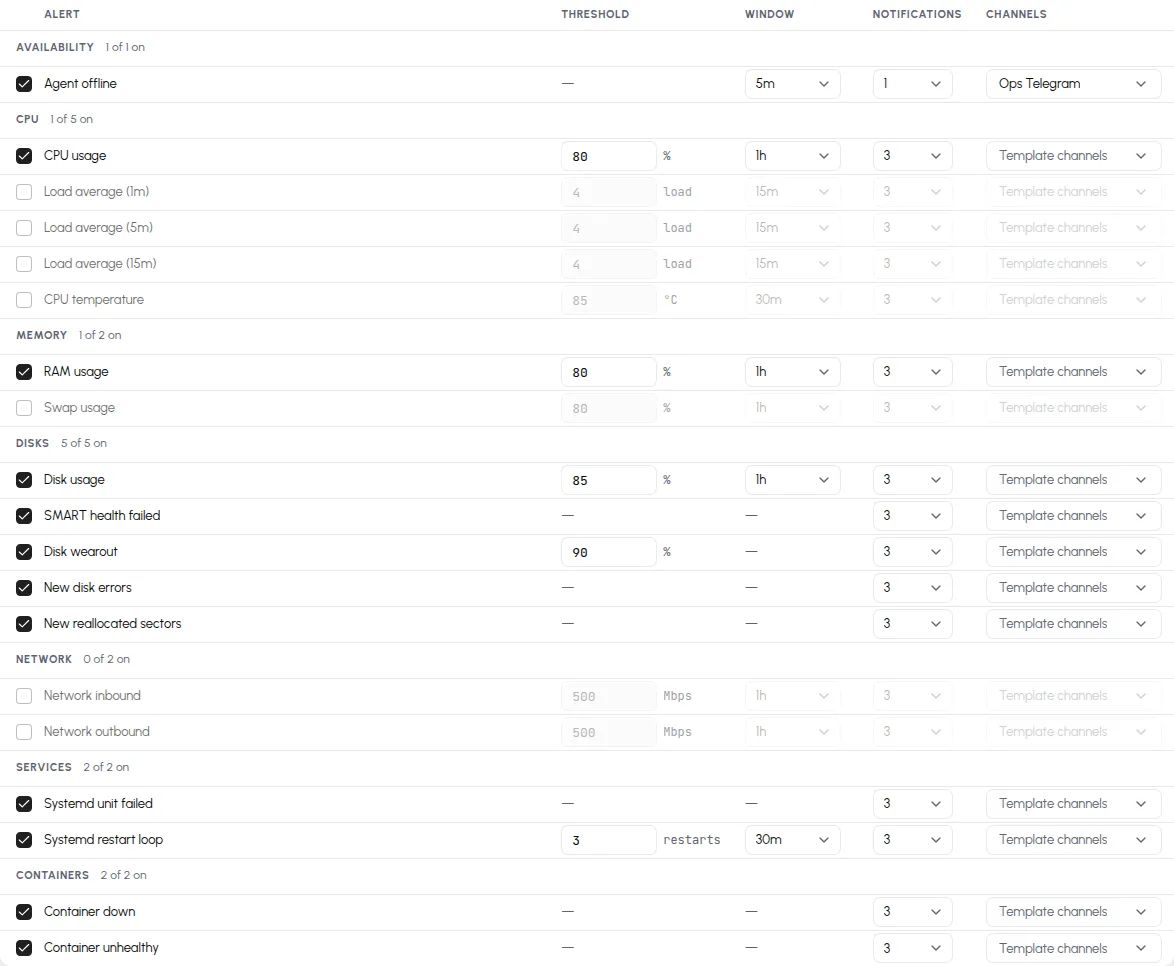
Every server you monitor can alert on CPU, memory, disk usage, load, temperature, network rates, a silent agent, a failing drive, a failed systemd unit, a dead container, or a port that stopped listening — the same 20 rules on every alert template, each with a notification count, and a threshold or window where it has one, that you can change. Every rule is listed below with its default and its limits, and exactly when it fires. How templates, channels, reminders, and acknowledgment fit together is covered in How alerting works.
Set up one alert
Section titled “Set up one alert”Every rule is changed in the same place, so the metric pages link here:
- Open Alerts in the dashboard, then the Templates tab, and click the template your server follows (Default unless you assigned another).
- Find the rule’s row under Rules and tick its checkbox to enable it; the group header counts how many in the group are on.
- Type the Threshold in the rule’s unit and pick a Window from the dropdown (1m to 24h). Rules without a threshold or window show a dash.
- Set Notifications, the number of messages the incident may send including the first (1 to 5).
- Leave Channels on Template channels, or click the cell and tick the channels this one rule should notify instead.
- Click Save changes. The rule applies to every server on the template from its next evaluation; rules are evaluated every 60 seconds.
All rules are evaluated every 60 seconds, but they don’t all decide the same way. There are three kinds:
- Threshold rules compare the metric’s average over the rule’s window against the threshold. To fire, the comparison must fail on 2 consecutive checks; to resolve, it must pass on 3 consecutive ones — so a single noisy sample neither fires nor resolves anything. Passing here means the value is below 90 % of the threshold, so a value hovering just under the line does not flap. For disk, a cleanup that lands at 80 % against an 85 % threshold stays firing until usage drops below 76.5 % (90 % of 85).
- State rules watch a condition that is simply true or false — a failed drive, a failed unit, a silent agent. They fire as soon as the condition holds (after the rule’s window, where it has one) and resolve on the first check that doesn’t see it.
- Event rules fire once per occurrence and land in the incident history already resolved — there is no ongoing state to watch, so there’s nothing to resolve later. Each new occurrence is its own incident.
Threshold rules
Section titled “Threshold rules”“Default” reads threshold / window. The window average is what’s tested: CPU usage at 80% / 1h fires when the hour-long average crosses 80%, not when one sample spikes.
| Rule | Default | Threshold limits | Enabled by default |
|---|---|---|---|
| CPU usage | 80% / 1h | 1–100% | yes |
| Load average (1m) | 4 / 15m | 0.1–1024 | no |
| Load average (5m) | 4 / 15m | 0.1–1024 | no |
| Load average (15m) | 4 / 15m | 0.1–1024 | no |
| CPU temperature | 85 °C / 30m | 30–120 °C | no |
| RAM usage | 80% / 1h | 1–100% | yes |
| Swap usage | 80% / 1h | 1–100% | no |
| Disk usage | 85% / 1h | 1–100% | yes |
| Network inbound | 500 Mbps / 1h | 1–100,000 | no |
| Network outbound | 500 Mbps / 1h | 1–100,000 | no |
Disk usage is evaluated per filesystem: each mount gets its own
incident, so a full /var and a full /home are two separate alerts.
State rules
Section titled “State rules”| Rule | Fires while | Enabled by default |
|---|---|---|
| Agent offline | The server’s last report is older than the rule’s window (default 5m). | yes |
| SMART health failed | A drive’s overall SMART self-assessment reports failure. | yes |
| Disk wearout | A drive’s wearout has reached the threshold (default 90%). | yes |
| Systemd unit failed | A .service unit is in the failed state. |
yes |
| Container down | A container stopped without a clean exit. | yes |
| Container unhealthy | A container’s own healthcheck reports unhealthy. | yes |
| Listening port disappeared | A port that had been listening for at least 10 minutes has been gone for the rule’s window (default 5m). | no |
Notes with edges:
- Agent offline accepts windows of 5 minutes and up — shorter values are rejected on save. It defaults to a single notification: a server that goes offline tells you once, not five times. It’s also the one alert that fires when the server can’t report — every other rule needs data to arrive.
- Container down doesn’t fire on clean stops: exit code 0, or 143
(a
docker stophonored with a graceful shutdown), is treated as intentional. Containers running for less than 2 minutes get a grace period, so restarts and fresh deploys don’t fire it. - Listening port disappeared is off until you enable it, and its window stops at 6 hours (1m to 6h). It ignores ports that listened for less than 10 minutes and doesn’t count minutes the agent wasn’t reporting. If the port stays missing for 24 hours its incident closes as Retired, with no resolve notice. The Ports panel page has the full behavior.
- Per-entity rules (drives, units, containers, mounts, ports) open one
incident per entity, named after it — the incident for a failed
redis.servicesays so.
Event rules
Section titled “Event rules”| Rule | Fires when | Enabled by default |
|---|---|---|
| New disk errors | A drive’s error counters increase compared to the last check. | yes |
| New reallocated sectors | A SATA drive’s reallocated-sector count increases compared to the last check. NVMe drives don’t report one. | yes |
| Systemd restart loop | A unit restarts 3 times (default, 1–50) within the window (default 30m). | yes |
An event rule notifies once per occurrence. In the Incidents list its incidents appear directly under Resolved — that’s by design, not a missed fire.
Windows and notifications
Section titled “Windows and notifications”- Every window dropdown offers the same steps: 1m, 5m, 10m, 15m, 30m, 1h, 2h, 6h, 12h, 24h. The one exception is Listening port disappeared, which stops at 6h.
- Notifications is the total number of messages an incident may send while firing, including the first — 1 to 5 (default 3). Reminder spacing comes from the template; see How alerting works.
Channels per rule
Section titled “Channels per rule”The Channels column is the last one in the rules table. A rule reads Template channels by default: it notifies the template’s Notification channels list. To send one rule somewhere else, click its Channels cell and tick the channels you want.
- A rule with its own channels sends its alert, its reminders, and its resolve notice to those channels only. Every other rule keeps using the template’s list.
- Click Use template channels in the same picker to reset the rule to the template’s list.
- Deleting a channel removes it from every rule that named it. A rule whose last channel was deleted goes back to the template’s channels.
- If every channel a rule names is disabled, nothing is sent, and the incident’s timeline says “Not sent: no enabled channels”.
The choice is saved with the template, like the other columns. Channels are created under Alerts → Channels; see Notification channels.
Resolving, reopening, and removed entities
Section titled “Resolving, reopening, and removed entities”- Resolve notices arrive once the alert has stayed clear for 15 minutes. If the condition returns inside those 15 minutes, it continues the same incident: no second “firing” notice, no “resolved” notice, and the acknowledgment is kept. A condition that returns after the notice has gone out starts a new incident with its own notice and a fresh acknowledgment.
- When a watched entity disappears — a container removed, a transient
unit cleaned up with
systemctl reset-failed, a drive pulled — its open incident resolves on its own, silently. - One honest edge: that auto-resolve needs a report proving the entity is gone. If the agent itself stops reporting, or the last entity of that kind vanishes (say, the only alerting mount is unmounted), there is no such report — the incident stays firing until its notification count is spent. Remove the incident’s cause, or acknowledge it, rather than waiting it out.
- Muting a server pauses its notifications, not evaluation: incidents keep opening and resolving, and anything that started during the mute is announced once when it ends. The mute switch is described in How alerting works.