How alerting works
Alerting is on from your first server: the account gets a Default template and an Account email channel automatically, so a server going offline already sends you an email. Everything lives under Alerts in the dashboard, split into Incidents, Templates, and Channels.
Templates bundle rules
Section titled “Templates bundle rules”As the Templates page puts it: “A template bundles alert rules, channels, and reminder policy. Each server follows one template (the account default unless assigned another).”
The Default template can’t be deleted, but you can edit it, duplicate it, or create more with New template and assign them per server. Its rule table has a row per rule type — 12 of 20 enabled out of the box:
| Rule | Threshold | Window | Notifications |
|---|---|---|---|
| Agent offline | — | 5m | 1 |
| CPU usage | 80% | 1h | 3 |
| RAM usage | 80% | 1h | 3 |
| Disk usage | 85% | 1h | 3 |
| SMART health failed | — | — | 3 |
| Disk wearout | 90% | — | 3 |
| New disk errors | — | — | 3 |
| New reallocated sectors | — | — | 3 |
| Systemd unit failed | — | — | 3 |
| Systemd restart loop | 3 restarts | 30m | 3 |
| Container down | — | — | 3 |
| Container unhealthy | — | — | 3 |
Eight more can be switched on per template: load averages (1m/5m/15m), CPU temperature, swap usage, network inbound/outbound rates, and Listening port disappeared. Thresholds, windows, and per-rule notification counts are all editable in the template editor.
How incidents fire and resolve
Section titled “How incidents fire and resolve”Rules are evaluated server-side every minute; an incident is created per server and rule.
- Threshold rules (CPU, RAM, disk usage, …) need two consecutive breaching evaluations to fire and three clean ones to resolve, so a single spike doesn’t page you. Clean means the value has stayed below 90 % of the threshold, so a value hovering just under the line does not flap between firing and resolved.
- State rules (Agent offline, SMART health failed, Container down, …) fire on the first breaching observation and resolve on the first healthy one. Agent offline fires when the server hasn’t checked in for the rule’s window — 5 minutes by default, which is also the minimum. Time during which Monitorable itself was not receiving data does not count toward that window, and the incident’s timeline says so.
- A resolved notice is sent once the alert has stayed clear for 15 minutes. If the condition returns inside those 15 minutes, it is the same incident: you get no second “firing” notice and no “resolved” notice, and your acknowledgment is kept. A condition that returns after the resolved notice has gone out starts a new incident, with its own notice. Either way, a flap inside the 15 minutes stays one line in your history.
Notifications, reminders, acknowledgment
Section titled “Notifications, reminders, acknowledgment”When an incident fires, the template’s channels get a notification. The template editor states the reminder policy exactly:
Reminders repeat at this interval until a rule’s Notifications count is used up (the count includes the initial alert). Acknowledging an incident stops its reminders.
- Remind every is per template (default 6h, minimum 30 minutes).
- The Notifications count is per rule, 1–5 total including the initial alert. Agent offline defaults to 1 — a server going offline notifies once per occurrence, not every 6 hours.
- While a server’s agent is offline, reminders for that server’s other alerts wait for the agent to return, then resume. The agent-offline alert itself still reminds.
- Notify when incidents resolve (on by default) sends a RESOLVED notification when the incident resolves — including for incidents you acknowledged.
A rule can send to its own channels instead of the template’s, and a template can escalate an unacknowledged alert once to a second set of channels; see Channels per rule and Escalation.
Acknowledge from the Incidents page. It can’t be undone. It silences reminders and clears the incident from the Alerts count in the sidebar, which only counts incidents nobody has acknowledged — but the incident itself stays open, and listed, until the condition is actually gone.
Per-server: assignment and mute
Section titled “Per-server: assignment and mute”Each server’s page has an Alerts on this server card listing its open incidents, with two controls: Template (which template this server follows — “Account default” unless you pick another) and Mute alerts. Muting pauses notifications for a duration you choose — 1 hour, 4 hours, 24 hours, or 7 days — or until you unmute, with an optional reason. The reason is shown in the card while the mute lasts.
Evaluation and the incident list carry on while a server is muted. Its incidents stay in the list, marked “muted”, but drop out of the attention tier, the Alerts count in the sidebar, and the status favicon.
- Incidents that start during the mute are announced once when it ends.
- A recovery during the mute resolves quietly, with no notice.
- While muted, you can change the duration (the current end is kept by default) or unmute.
The Incidents page
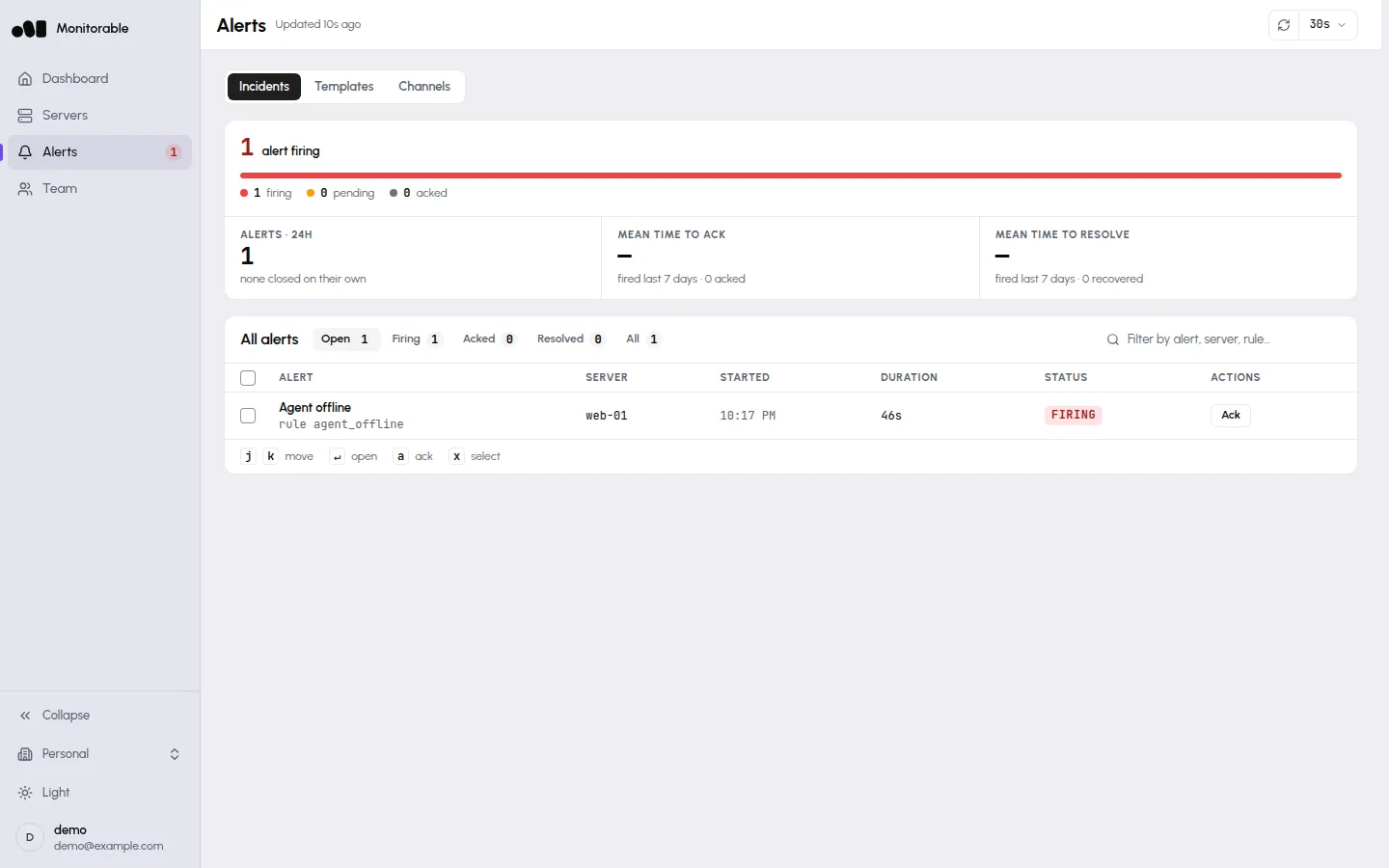
Section titled “The Incidents page”Alerts → Incidents lists incidents with an All / Firing / Acked / Resolved filter. Each row shows the alert (rule and, where it applies, the unit or container), the server, when it started, how long it has been open, its status, and an Ack (acknowledge) action.
The page shows every open incident plus everything from the last 7 days. Resolved incidents are kept for 90 days, then removed automatically.
Notification delivery is a separate topic — where alerts go, testing a channel, and daily caps are covered in Notification channels.