Know when a disk is about to fail (SMART)
Get told before a drive fails, from the drive’s own SMART data, without
setting up smartd and a mail path on every server: the agent reads each
physical drive’s health, and four alert rules fire on a failed
self-assessment, new errors, new reallocated sectors, and wearout.
The SMART tab on a server’s Disk panel appears on bare-metal servers only. SMART data comes from the physical drive itself, and virtualized disks — virtio, Xen, Hyper-V, and anything inside a VM, LXC, or other container — don’t pass it through. If your server is a VPS and its Disk panel has no SMART tab, nothing is wrong: there is no drive health to read, and the tab stays away rather than showing an empty table.
On bare metal, the tab lists every physical NVMe and SATA drive with its SMART verdict:
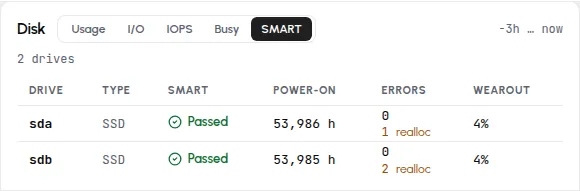
The table, drive by drive
Section titled “The table, drive by drive”| Column | Meaning |
|---|---|
| Drive | Kernel device name (sda, nvme0n1). |
| Type | NVMe, SSD, or HDD. |
| SMART | The drive’s overall SMART self-assessment. Passed is healthy; a failing drive is what the SMART health failed alert rule fires on. |
| Power-on | Lifetime hours the drive has been powered (13,305 h), from the drive’s own counter. |
| Errors | Entries in the drive’s SMART error log (SATA), or media and data-integrity errors (NVMe). When a SATA drive has reallocated sectors — bad sectors it has swapped for spares — their count shows under it in amber, such as 24 realloc. A few is common on an older drive; a count that keeps climbing is an early sign of a failing drive, which is what the New reallocated sectors alert rule fires on. |
| Wearout | How much of the drive’s rated endurance is used — 0% is a new drive, and higher is more worn. Reported for SSDs and NVMe drives; spinning disks don’t expose an endurance figure. |
Click a drive for the full picture — model, capacity, temperature, and the
serial number, which is how you match a sda in the dashboard to the
physical drive in your hands:
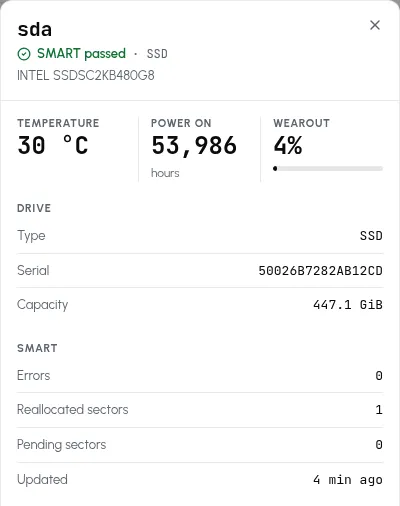
The serial number is the one hardware identifier the agent reports — What the agent collects lists every SMART field that leaves the server.
Alert when a drive starts failing
Section titled “Alert when a drive starts failing”The table above is also what the alert rules read. Each of these four is on by default and opens one incident per drive, named after it:
- SMART health failed fires while a drive’s overall self-assessment reports failure, and resolves on the first snapshot that reads Passed again.
- Disk wearout fires while a drive’s wearout has reached 90% (the default threshold).
- New disk errors fires once each time a drive’s error counters increase compared to the last check.
- New reallocated sectors fires once each time a SATA drive’s reallocated-sector count increases; NVMe drives don’t report one.
The two “new” rules are event rules: one notification per occurrence, and the incident lands in the history already resolved. Lower the wearout threshold or send drive alerts to a channel of their own in the template, following Set up one alert.
When the data arrives
Section titled “When the data arrives”The agent takes its first SMART snapshot when its service starts, so the tab shows up within a couple of minutes of installing on a bare-metal server. After that it refreshes every 15 minutes — drive health doesn’t move fast, and each read wakes the drives up.
The privileges behind it
Section titled “The privileges behind it”Reading SMART needs low-level device access the agent otherwise
doesn’t have, so the install script probes /sys/block and grants only
what your hardware calls for. On a server with SATA drives, the install
prints:
💽 SATA/SAS detected — enabling SMART (CAP_SYS_RAWIO)NVMe gets a slightly broader grant, and a server with no physical drives gets nothing at all — Requirements & permissions has the exact table. If you add a physical drive to a server later, re-run the install command: it re-probes the hardware and extends the grant, and the new drive joins the table on the next SMART cycle.
Doing this with smartd
Section titled “Doing this with smartd”If you’d rather not run an agent, smartmontools ships smartd, which
polls every drive on the server and mails you when a health check fails or
a new error appears. Replace the DEVICESCAN line in /etc/smartd.conf
(Debian and Ubuntu ship one, and smartd ignores everything after the
first) with one that watches every drive it finds, then restart the daemon:
DEVICESCAN -a -m you@example.com-a turns on the health check, attribute tracking, the error-log and
self-test-log counts, and the pending and offline-uncorrectable sector
checks; -m is where warnings go. A one-off foreground run shows what the
daemon would pick up — two drives here, one SATA and one NVMe:
smartd -d -q onecheck -c /etc/smartd.confOpened configuration file /etc/smartd.confConfiguration file /etc/smartd.conf was parsed, found DEVICESCAN, scanning devicesDevice: /dev/sda, type changed from 'scsi' to 'sat'Device: /dev/sda [SAT], openedDevice: /dev/sda [SAT], is SMART capable. Adding to "monitor" list.Device: /dev/nvme0, openedDevice: /dev/nvme0, is SMART capable. Adding to "monitor" list.Monitoring 1 ATA/SATA, 0 SCSI/SAS and 1 NVMe devicesStarted with '-q onecheck' option. All devices successfully checked once.smartd is exiting (exit status 0)What this route leaves out: warnings go through the system mail command,
so every server needs a working mail setup or a -M exec script of your
own; you get a single warning per alert type (then daily reminders where
smartd keeps state, the default on Debian and Ubuntu), with nothing to
acknowledge; the only limit you set is a temperature (-W), pending and
uncorrectable sectors are reported when non-zero (-C, -U), and there
is no wearout-percentage rule; and one config watches one server, so nothing
lines up your drives side by side. The rules above read the same SMART
data and add the wearout threshold and the per-drive incidents.